Showing posts with label SSMS. Show all posts

Thursday, December 11, 2008

SQL Server Management Studio Object Explorer Autohide Delay

One of the most popular pages on my blog for some reason is the Setting Auto-Recovery/AutoSave in SQL Server Management Studio post I made back in July.  I don't usually recommend that someone hack their registry manually, but in some cases it is the only way to make the changes because the tools available in the application don't allow for it.  SQL Server Management Studio is one of those applications whose configuration options in the registry are not adequately exposed in the tools or options menus.

Since that little hack was so popular, I figured I would post another one, but first the needed warnings:

DISCLAIMER:

Editing the registry is not generally recommended, and/or supported.  If you choose to do so, you are doing it at your own risk.  I am not responsible for damage caused by you editing the registry manually.

Coming once again from the MSDN Forums, this hack involves changing the speed with which the Object Explorer auto hide occurs.  A post back in October commented that the delay for the autohide was to long in SQL Server Management Studio, and wanted to know how to change the time it took to be faster.  Of course this is not documented anywhere online, so I went back to my July post, and started looking at the various registry keys that were available for Management Studio in one of my VPC's.  What I found is the following:

You can edit the following Registry Key:

HKEY_CURRENT_USER\Software\Microsoft\Microsoft SQL Server\90\Tools\Shell\General\AnimationSpeed

The higher the value, the faster it will close.  At Hex value 20 it is almost immediately closed.

You can disable the Animations completely by changing:

HKEY_CURRENT_USER\Software\Microsoft\Microsoft SQL Server\90\Tools\Shell\General\Animations

and setting it to a value of 0.

If it helps you out, cool, but if you break it, don't email any scathing comments to me about editing your registry manually.  I am only going to refer you back to the Disclaimer above.

Thursday, December 4, 2008

SQL Server Backup Fundamentals - Mirrored Backup vs Striped Backup

SQL Server Backup isn't necessarily the easiest thing in the world to do.  I've seen a few posts recently where the poster is performing a restore operation and encounters the following error message:

TITLE: Microsoft SQL Server Management Studio
------------------------------

Restore failed for Server 'ServerName'.  (Microsoft.SqlServer.Smo)

For help, click: http://go.microsoft.com/fwlink?ProdName=Microsoft+SQL+Server&ProdVer=9.00.1399.00&EvtSrc=Microsoft.SqlServer.Management.Smo.ExceptionTemplates.FailedOperationExceptionText&EvtID=Restore+Server&LinkId=20476

------------------------------
ADDITIONAL INFORMATION:

System.Data.SqlClient.SqlError: The media set has 2 media families but only 1 are provided. All members must be provided. (Microsoft.SqlServer.Smo)

For help, click: http://go.microsoft.com/fwlink?ProdName=Microsoft+SQL+Server&ProdVer=9.00.1399.00&LinkId=20476

------------------------------
BUTTONS:

OK
------------------------------

What is really sad is that the person encountering this error is often in the midst of a disaster recovery, and unfortunately, they are learning the hard way why testing your backups early, and testing your backups often is a recommended best practice for a reason.  Unfortunately, if you find yourself with this error and this is the only backup of the database you need to restore, you are in serious trouble, because just like a RAID 0 disk, there is no way to rebuild your database without all the backup files in the media set present.  At this point, you might not believe me, and you certainly have that right, but I am presenting the cold hard truth and you can validate this by doing a Google Search or a Windows Live Search. 

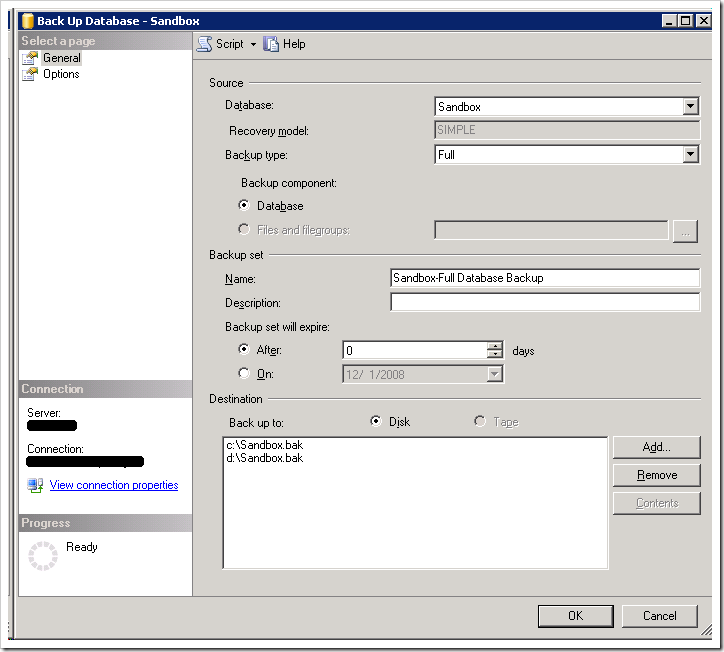
So how exactly does this particular error come about?  For more than a few people it has been caused by SQL Server Management Studio, and confusion about the UI for backing up a database.

image

To someone new to SQL Server, this looks like it might be performing a backup to c:\Sandbox.bak and making a duplicate or mirrored copy to d:\Sandbox.bak.  In reality, this is not the case.  Instead this is performing a striped backup similar to a RAID 0 disk which will write the data round robin to all of the files listed.  Striping backups can be used to improve performance of the backup operation, especially for VLDB's using multiple drives with dedicated I/O channels to each of the drives.  The backup TSQL command from the above scripted out would be:

BACKUP DATABASE [Sandbox] 
TO DISK = N'c:\Sandbox.bak',
DISK = N'd:\Sandbox.bak'
WITH FORMAT,
NAME = N'Sandbox-Full Database Backup',
SKIP, NOREWIND, NOUNLOAD, STATS = 10
GO


To create a mirrored backup, you can't use the UI in SQL Server Management Studio, you actually have to use TSQL Scripts following the Book Online entry for BACKUP DATABASE.  The MIRROR TO option is used to create the mirrored backup as follows:


BACKUP DATABASE [Sandbox] 
TO DISK = N'c:\Sandbox.bak'
MIRROR TO DISK = N'd:\Sandbox.bak'
WITH FORMAT,
NAME = N'Sandbox-Full Database Backup',
SKIP, NOREWIND, NOUNLOAD, STATS = 10
GO


The bad thing as I stated previously in this post is that someone doesn't realize the mistake until it is to late.  When was the last time that you tested your backups?  Testing would have caught this problem well ahead of it actually being a problem. 

Wednesday, August 20, 2008

SQL 2008 SSMS - What happened to F8 = Open Object Explorer

A online friend and fellow moderator from the forums, Deepak Rangarajan, asked a good question this morning in a chat that is worthy of blogging about.  In SQL Management Studio 2005 you could hit the F8 key as a shortcut to bring up the Object Explorer.  I personally didn't know this until today, but out of the box SSMS 2008 doesn't do this.  Since I started in SQL 2000 using the old Query Analyzer, I know the old hot keys for doing things like Ctl+Shft+C will comment out the current highlighted code block, and Ctl+Shft+R will uncomment it.  This was not available with the default keyboard configuration in SSMS 2005, but you can change the Keyboard to the SQL 2000 settings in Tools->Options and it will work as it did in Query Analyzer.  Naturally this was one of the first changes I made in SSMS 2008 when I installed it, but this also brings the F8 shortcut functionality back. 

Wednesday, July 23, 2008

How to Disable All Constraints or Triggers in a Single Command

From time to time we all make mistakes, no DBA is immune from creating a total disaster with the click of a button.  Luckily today this was on a testing database and not on a production one, but a table hint out of place, resulted in the loss of a 90GB database table in less than a few seconds.  What started as a simple data purge ended up being nothing short of a disaster, albeit on a test database. 

The idea was to purge roughly 80GB of the data from this table, so rather than issue a long running set based delete, I opened the table in the SSMS designer and made a change to one of the columns, then scripted the operation to a new window.  I did this so that I could replace the dynamic SQL Statement with a statement to grab the rows to keep.  The problem was I put the WITH (HOLDLOCK, TABLOCKX) after my WHERE clause.  Since this is dynamic SQL, the syntax will pass a syntax check, but when the code actually executes you get an exception, and no data is copied to the tmp_Tablename table from the original base table, and then the original base table is dropped, leaving you with a wonderfully empty new table.

So on to fixing the problem and the purpose of this post.  To solve the problem, I used an integration package to pull the data from the production database table into a flat file which I then could import back into the testing server.  The problem came when I went to load the data, that check constraints failed, and the load failed.  What to do??  Well, it turns out that disabling all constraints and triggers in database is really simple, you just need to use the undocumented sp_msforeachtable stored procedure as follows:

--Disable Constraints 
EXEC sp_MSforeachtable 'ALTER TABLE ? NOCHECK CONSTRAINT ALL'

--Disable Triggers
EXEC sp_MSforeachtable 'ALTER TABLE ? DISABLE TRIGGER ALL'

-- Load data Now

--Enable Constraints
EXEC sp_MSforeachtable 'ALTER TABLE ? CHECK CONSTRAINT ALL'

--Enable Triggers
EXEC sp_MSforeachtable 'ALTER TABLE ? ENABLE TRIGGER ALL'


this allowed for the data to be loaded, and then I was able to resolve the orphaned records as needed.

Wednesday, July 9, 2008

Multi-Server Query Execution in SQL 2008

As a DBA, have you ever needed to run a query against one of the system databases in all of your servers? The tedious process of opening a Query in SSMS and then running it, changing the connection and running it again are over. SQL 2008 now has the ability to run multi-server queries. To utilize this new feature, requires at least one registered server group to run a script against multiple server. To setup a registered server group and servers, refer to

http://msdn2.microsoft.com/en-us/library/ms181228(SQL.100).aspx
http://msdn2.microsoft.com/en-us/library/ms183353(SQL.100).aspx

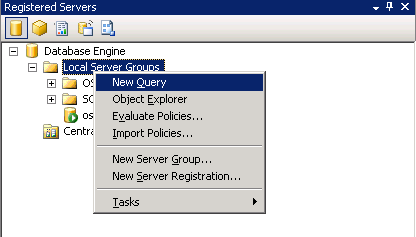
Once you have your group created, you can right click on it and select the New Query Option:

image

When you do this, some specific environmental changes will occur. First, the Database Dropdown box will only have the common databases to all servers listed in it.

image

Second, the the status bar will turn from beige to Pink to show that this window is in multi-server mode.

image

Now we can run a simple database script. For the purposes of demonstration I am going to use the script from the following SQL Examples article:

Find Last BackUp Date Of All Databases On Your Server

What you will notice when your run this command is that you now have an added column in the output, ServerName:

image

You can configure the output of this columns in the SSMS Options under Query Results -> SQL Server -> Multiserver Results.

image

What is really nice is that as long as your query can execute on all of the servers, this works with SQL 2000 and SQL 2005 Registered Servers as well. Yet another tool available to ease the tasks as a DBA.

Tuesday, July 1, 2008

Setting Auto-Recovery/AutoSave in SQL Server Management Studio

A recent forum post asked about how to configure the auto recovery / auto save options in SQL Server Management Studio.  I was surprised to find that you can't do any configuration of this in SSMS.  There are 2 connect feedbacks for this, both closed, and both unresolved.

Auto Save SQL Scripts option in Management Studio Feature Request
How to turn off Auto Recovery in SQL Server Management Studio 2005?

There is a work around published in one of them that will work.  You can edit the following registry key and set the Value of the AutoRecovery to 0(zero).

HKEY_CURRENT_USER\Software\Microsoft\Microsoft SQL Server\90\Tools\Shell\General\AutoRecover

What is really surprising to me is that this also was not addressed in SQL 2008 as of RC0 either.  I would have expected that this would have been corrected, but have found that it wasn't.

Tuesday, February 19, 2008

Loading all SQL Servers into SSMS From Network (VBScript)

Previously I posted how to enumerate your SQL Servers into the XML regsrvr file that can be imported into SSMS to automatically register all SQL Servers on your domain in SSMS. Knowing that not everyone would want to install Visual C# or Visual Studio to build the console app, I also worked on the following VBScript which does the same exact job, using the same tools.

Script:

Set fso = CreateObject("Scripting.FilesystemObject")
Set objSQLDMOApp = CreateObject("SQLDMO.Application")

Set objSQLList = objSQLDMOApp.ListAvailableSQLServers()

set a = fso.createtextFile("c:\2005_SSMS.regsrvr")

RepeatTab = 1
Tab = " "

a.Writeline ("<?xml version=""1.0"" encoding=""utf-8""?>")
a.Writeline ("<Export serverType=""8c91a03d-f9b4-46c0-a305-b5dcc79ff907"">")
a.Writeline (RepeatString(Tab,RepeatTab) & "<ServerType id=""8c91a03d-f9b4-46c0-a305-b5dcc79ff907"" name=""Database Engine"">")
a.Writeline (RepeatString(Tab,RepeatTab) & "<Group name=""SQL Locator Import"" description=""Servers Located by SQL Locator and Imported into SSMS"">")

RepeatTab = RepeatTab +1

For i = 1 To objSQLList.Count
servername = objSQLList.Item(i)

a.Writeline (RepeatString(Tab,RepeatTab) & "<Server name=""" & servername & """ description="""">")
RepeatTab = RepeatTab +1
a.Writeline (RepeatString(Tab,RepeatTab) & "<ConnectionInformation>")
RepeatTab = RepeatTab +1
a.Writeline (RepeatString(Tab,RepeatTab) & "<ServerType>8c91a03d-f9b4-46c0-a305-b5dcc79ff907<⁄ServerType>")
a.Writeline (RepeatString(Tab,RepeatTab) & "<ServerName>" & servername & "<⁄ServerName>")
a.Writeline (RepeatString(Tab,RepeatTab) & "<AuthenticationType>0<⁄AuthenticationType>")
a.Writeline (RepeatString(Tab,RepeatTab) & "<UserName ⁄>")
a.Writeline (RepeatString(Tab,RepeatTab) & "<Password ⁄>")
a.Writeline (RepeatString(Tab,RepeatTab) & "<AdvancedOptions>")
RepeatTab = RepeatTab +1
a.Writeline (RepeatString(Tab,RepeatTab) & "<PACKET_SIZE>4096<⁄PACKET_SIZE>")
a.Writeline (RepeatString(Tab,RepeatTab) & "<CONNECTION_TIMEOUT>15<⁄CONNECTION_TIMEOUT>")
a.Writeline (RepeatString(Tab,RepeatTab) & "<EXEC_TIMEOUT>0<⁄EXEC_TIMEOUT>")
a.Writeline (RepeatString(Tab,RepeatTab) & "<ENCRYPT_CONNECTION>False<⁄ENCRYPT_CONNECTION>")
RepeatTab = RepeatTab -1
a.Writeline (RepeatString(Tab,RepeatTab) & "<⁄AdvancedOptions>")
RepeatTab = RepeatTab -1
a.Writeline (RepeatString(Tab,RepeatTab) & "<⁄ConnectionInformation>")
RepeatTab = RepeatTab -1
a.Writeline (RepeatString(Tab,RepeatTab) & "<⁄Server>")

Next
RepeatTab = 2
a.Writeline (RepeatString(Tab,RepeatTab) & "<⁄Group>")
RepeatTab = 1
a.Writeline (RepeatString(Tab,RepeatTab) & "<⁄ServerType>")
RepeatTab = 0
a.Writeline (RepeatString(Tab,RepeatTab) & "<⁄Export>")


Set Args = wScript.Arguments

If Args.Count = 0 then
msgbox "Registry Import File is ready", vbInformation+vbOKonly
end if

a.Close()

Set a = Nothing
Set objSQLList = Nothing
Set objSQLDeeMOApp = Nothing

Function RepeatString(strInput, intCount)
Dim arrTmp()
ReDim arrTmp(intCount)
RepeatString = Join(arrTmp, strInput)
End Function

wscript.quit


Simply copy and paste the above code into a .vbs file and run it. The output will be in your root C directory.

Tuesday, February 5, 2008

Loading all SQL Servers into SSMS From Network (.NET)

Recently a post on the MSDN forums asked how to import all SQL Servers on a Network into SSMS automatically. There actually is not a good implementation of this anywhere that I have found. So I worked out the following in C# as a console app. I am posting full source so that anyone can review what it is doing. I had the SQLLocator class from somewhere and I don't have a reference for it, but will figure out where I got it and provide credit here soon. It is not my work, but it does an amazing job for what I wanted to do, and it was open source.


using System;
using System.Collections.Generic;
using System.Text;
using System.Runtime.InteropServices;
using System.IO;

namespace SSMSImportGeneration
{
class Program
{
static void Main(string[] args)
{
string[] theAvailableSqlServers = SqlLocator.GetServers();
if (theAvailableSqlServers != null)
{
WriteFile(theAvailableSqlServers);
}
else
{
Console.WriteLine("No SQL servers found.");
}
}

private static void WriteFile(string[] data)
{
FileStream file = new FileStream("c:\\SQLImport.regsrvr", FileMode.OpenOrCreate, FileAccess.Write);
StreamWriter sw = new StreamWriter(file);
string importdata = "";
importdata = "<?xml version=\"1.0\" encoding=\"utf-8\"?>\n";
importdata += " <Export serverType=\"8c91a03d-f9b4-46c0-a305-b5dcc79ff907\">\n";
importdata += " <ServerType id=\"8c91a03d-f9b4-46c0-a305-b5dcc79ff907\" name=\"Database Engine\">\n";
importdata += " <Group name=\"SQL Locator Import\" description=\"Servers Located by SQL Locator and Imported into SSMS\">\n";

foreach (string server in data)
{
importdata += " <Server name=\"" + server + "\" description=\"\">\n";
importdata += " <ConnectionInformation>\n";
importdata += " <ServerType>8c91a03d-f9b4-46c0-a305-b5dcc79ff907</ServerType>\n";
importdata += " <ServerName>" + server + "</ServerName>\n";
importdata += " <AuthenticationType>0</AuthenticationType>\n";
importdata += " <UserName />\n";
importdata += " <Password />\n";
importdata += " <AdvancedOptions>\n";
importdata += " <PACKET_SIZE>4096</PACKET_SIZE>\n";
importdata += " <CONNECTION_TIMEOUT>15</CONNECTION_TIMEOUT>\n";
importdata += " <EXEC_TIMEOUT>0</EXEC_TIMEOUT>\n";
importdata += " <ENCRYPT_CONNECTION>False</ENCRYPT_CONNECTION>\n";
importdata += " </AdvancedOptions>\n";
importdata += " </ConnectionInformation>\n";
importdata += " </Server>\n";
}
importdata += " </Group>\n";
importdata += " </ServerType>\n";
importdata += " </Export>\n";

sw.Write(importdata);
sw.Close();
file.Close();
Console.WriteLine("File Created in Root c:\\SQLImport.regsrvr");
}
}

public class SqlLocator
{
[DllImport("odbc32.dll")]
private static extern short SQLAllocHandle(short hType, IntPtr inputHandle, out IntPtr outputHandle);
[DllImport("odbc32.dll")]
private static extern short SQLSetEnvAttr(IntPtr henv, int attribute, IntPtr valuePtr, int strLength);
[DllImport("odbc32.dll")]
private static extern short SQLFreeHandle(short hType, IntPtr handle);
[DllImport("odbc32.dll", CharSet = CharSet.Ansi)]
private static extern short SQLBrowseConnect(IntPtr hconn, StringBuilder inString,
short inStringLength, StringBuilder outString, short outStringLength,
out short outLengthNeeded);

private const short SQL_HANDLE_ENV = 1;
private const short SQL_HANDLE_DBC = 2;
private const int SQL_ATTR_ODBC_VERSION = 200;
private const int SQL_OV_ODBC3 = 3;
private const short SQL_SUCCESS = 0;

private const short SQL_NEED_DATA = 99;
private const short DEFAULT_RESULT_SIZE = 1024;
private const string SQL_DRIVER_STR = "DRIVER=SQL SERVER";

private SqlLocator() { }

public static string[] GetServers()
{
string[] retval = null;
string txt = string.Empty;
IntPtr henv = IntPtr.Zero;
IntPtr hconn = IntPtr.Zero;
StringBuilder inString = new StringBuilder(SQL_DRIVER_STR);
StringBuilder outString = new StringBuilder(DEFAULT_RESULT_SIZE);
short inStringLength = (short)inString.Length;
short lenNeeded = 0;

try
{
if (SQL_SUCCESS == SQLAllocHandle(SQL_HANDLE_ENV, henv, out henv))
{
if (SQL_SUCCESS == SQLSetEnvAttr(henv, SQL_ATTR_ODBC_VERSION, (IntPtr)SQL_OV_ODBC3, 0))
{
if (SQL_SUCCESS == SQLAllocHandle(SQL_HANDLE_DBC, henv, out hconn))
{
if (SQL_NEED_DATA == SQLBrowseConnect(hconn, inString, inStringLength, outString,
DEFAULT_RESULT_SIZE, out lenNeeded))
{
if (DEFAULT_RESULT_SIZE < lenNeeded)
{
outString.Capacity = lenNeeded;
if (SQL_NEED_DATA != SQLBrowseConnect(hconn, inString, inStringLength, outString,
lenNeeded, out lenNeeded))
{
throw new ApplicationException("Unabled to aquire SQL Servers from ODBC driver.");
}
}
txt = outString.ToString();
int start = txt.IndexOf("{") + 1;
int len = txt.IndexOf("}") - start;
if ((start > 0) && (len > 0))
{
txt = txt.Substring(start, len);
}
else
{
txt = string.Empty;
}
}
}
}
}
}
catch (Exception ex)
{
//Throw away any error if we are not in debug mode
#if (DEBUG)
Console.WriteLine(ex.Message, "Acquire SQL Servier List Error");
#endif
txt = string.Empty;
}
finally
{
if (hconn != IntPtr.Zero)
{
SQLFreeHandle(SQL_HANDLE_DBC, hconn);
}
if (henv != IntPtr.Zero)
{
SQLFreeHandle(SQL_HANDLE_ENV, hconn);
}
}

if (txt.Length > 0)
{
retval = txt.Split(",".ToCharArray());
}
return retval;
}
}
}